
Once you have connected your scale to the internet, you're ready to count that first inventory!
SmartScale Steps for Inventory
How-To Instructions
- Weighing a bottle with a barcode that's new to us
- Weighing a bottle that doesn't have a barcode
- Changing a Count Sheet
Common Questions & Answers
1) Start with a Data Sync
Every inventory count starts with a data sync. This ensures you are counting with the latest product names and updates!
From the Main Menu, tap on “Data Sync”. Then tap on “Dashboard Data Transfer”
There's a double check - tap “Yes” if you are ready!
2) Choose your Count Sheet
Go to Main Menu > Start Inventory.
Then tap "Scan, Weigh & Count"
Select the Count Sheet to use.
"Ready to Scan" means it's time for the bottles!
3) Scan Bottles
Scan your first bottle.
When you see “Ready to Weigh”, place the bottle on the scale.
Once the weight appears, it's saved and you can remove that bottle and scan the next one!
No barcode? Unknown Item? Click to read those instructions below.
4) Upload Data after Inventory
Once your inventory is complete and all locations have been counted, then you will need to upload the data to MarginEdge. This will transfer the Inventory data in your scale to MarginEdge.
A completed data upload will reset the Inventory Counts stored in the scale. (Inventory Counts will NOT be reset if the data upload fails.)
If you are still in the inventory scan, tap "Exit" (from the inventory) >> "Exit" (again) and proceed with the Data Sync as you did at the beginning.
How to weigh a bottle with a barcode that's new to us
We've made adding a new item easy! Scanning a bottle that is new to us will prompt an "Unknown Item" alert. Don't fret, we just need you to:
- Follow the prompts to enter the bottle's weight
- Snap a picture of the label and barcode just in case we need to reach out for more information
After this is saved, the item name will show as "New Item [+barcode]" on the scale. Our team will do the research to update all the details so that when you are ready to take your next inventory, this item will be updated with the full name for you!
If this is a full or empty bottle, tap the appropriate button and weigh the bottle.
Tap "Save Weight". Tap "Save" again to confirm.
If this is a partial bottle, tap the middle option and weigh the bottle. Tap "Save Weight".
Enter the percentage amount that is remaining in the bottle. (If it's half full, enter 50%.)
Tap "Save"
After this is saved, the item name will show as "New Item [+barcode]" on the scale and you can keep scanning as usual!
How to weigh and count a bottle with no barcode
Your scale can create a short list of your bottles without barcodes.
1) From the "Ready to Scan" screen, tap the “Items with No Barcodes” button
2) If this is a brand new bottle you have never counted before, tap "Add" from the bottom of the screen and follow the steps to add a new item.
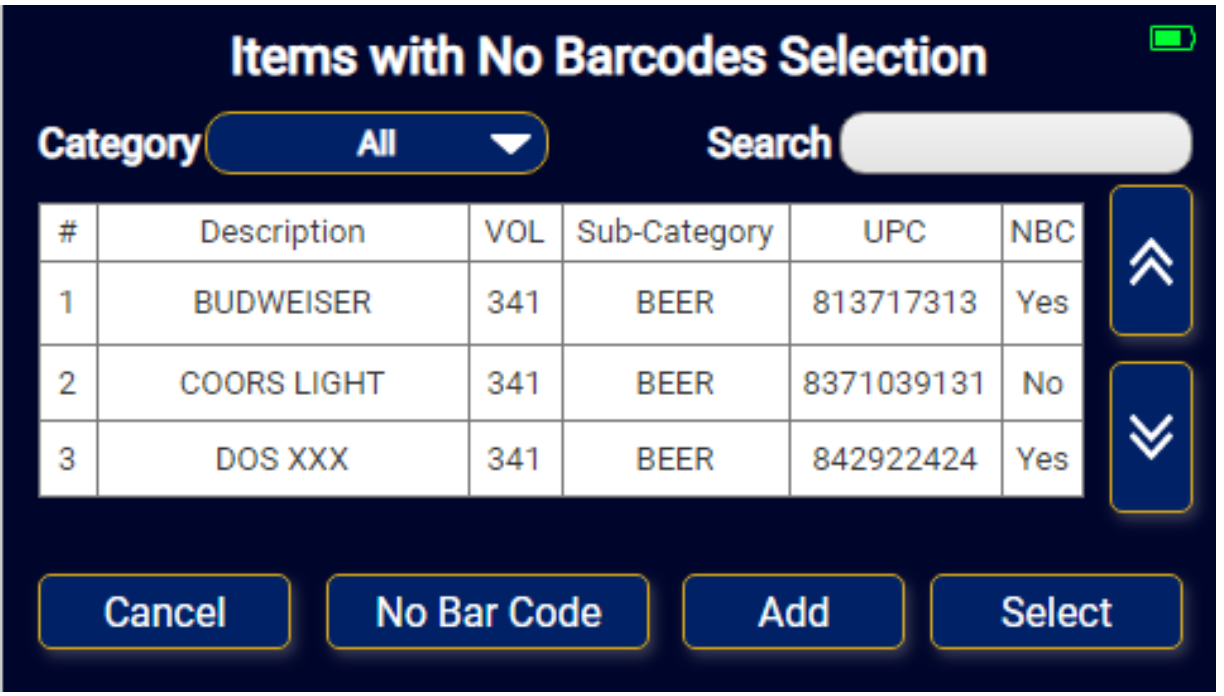
3) Once you've selected "Add" from the table of items without barcodes, tap "Type UPC"
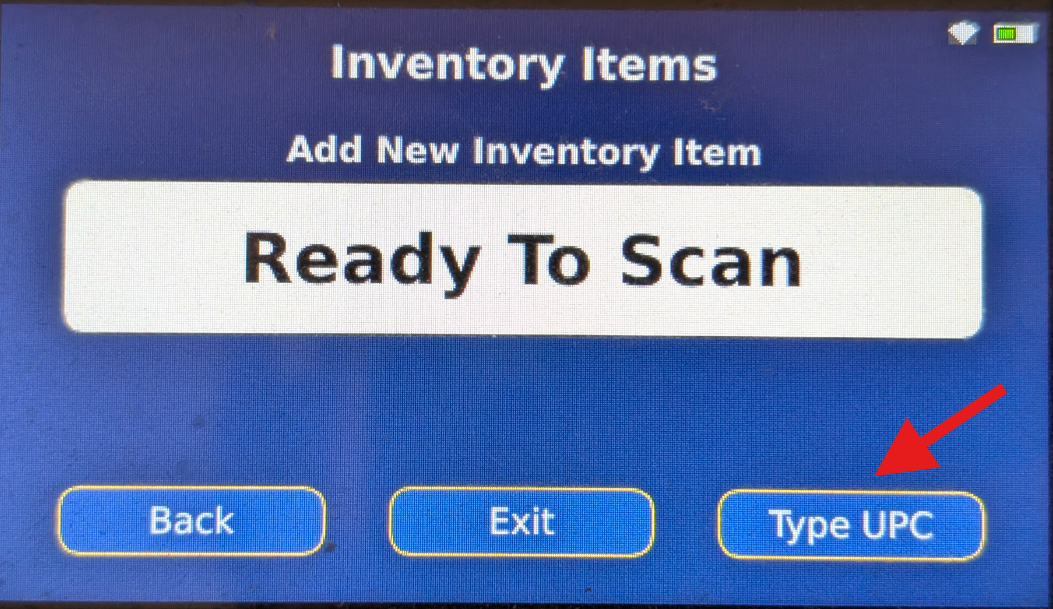
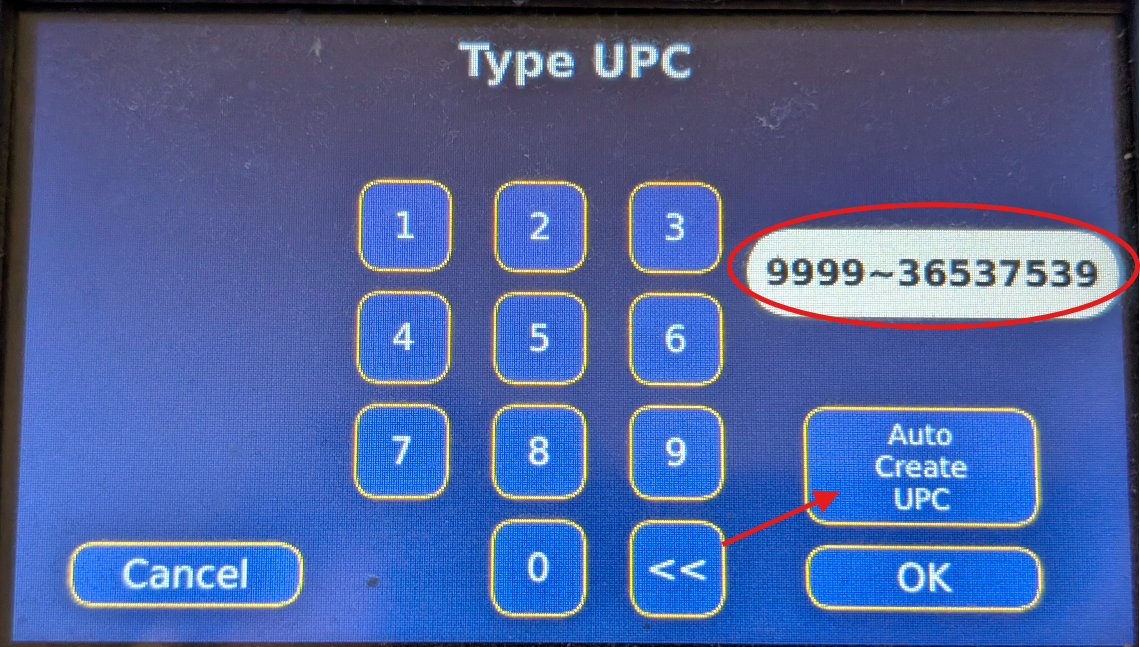
4) Tap "Auto Create UPC". This will generate a dummy barcode.
Tap "OK"
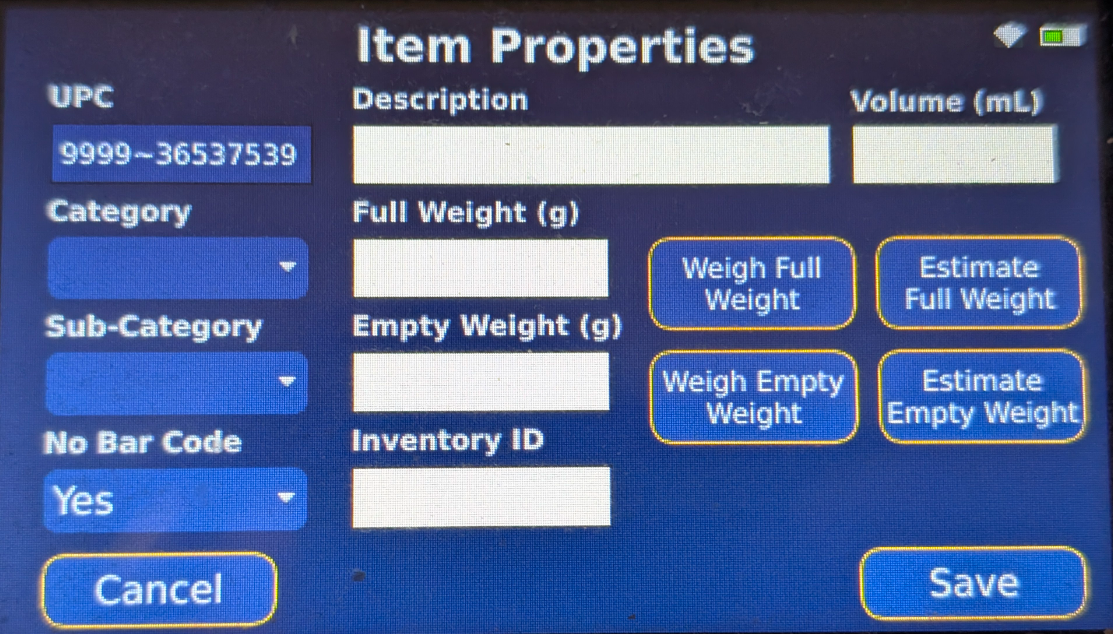
5) Now you will be able to configure the barcodeless bottle!
How to Change Count Sheets During Inventory
"Select Bar" >> Select Count Sheet >> "Next"
Common Questions
Editing the Data in MarginEdge
Your data from the scale will create a count sheet for each Bar Location using the location name plus "FP", as seen below. It will be in a saved status and you can open it to edit any counts or make adjustments. If it's good to go, then you can go ahead and close it.
How can I change the inventory date?
- The date is automatically set as the date shown on the scale when you actually did the scan. To adjust, click on the inventory to view it and then click on the "Edit Inventory Date" button.
What if my inventory says "We're working on it"?
- There are a few items that require some additional pieces of information and / or some mapping. Don't worry, our behind the scenes team is actively working to get that completed for you! Once it's finished, your inventory will show in the "Closed" status.
How can I add or remove items?
- For Freepour count sheets, once the scan is completed and uploaded to MarginEdge, you cannot add or remove items to the inventory. Our "config mode" does allow this in other inventory count sheets, but this does not apply to Freepour inventories. If you really need another item added to your count sheet, you must do a full re-scan of all items and another data sync.
What if I want the data to upload across multiple count sheets in MarginEdge?
- We will need to set you up with separate count sheets in your Freepour scale. Please send an email to help@marginedge.com listing the count sheets / locations you want listed and we will update those for you. Once we have completed this, you will need to do a quick data sync for the locations to appear in your drop down list.
What if I forget to swap locations while scanning?
- Everything will be scanned under the count sheet they were on. If you absolutely need them on separate count sheets you have to delete the inventory and rescan all items.
Can I take multiple counts within one day?
- Yes, if you sync more than one count on the same day AND they are on the same count sheet, it will all roll up into one count sheet.
- For example, if you scanned .50 bottles of Jack Daniels at 10:00PM, and synced the scale, then another .25 bottles of Jack Daniels at 11:00PM and synced the scale, the total count for that day would be .75.
- If you want to do an AM and PM count, that will need to be set up as separate locations so that it goes onto separate count sheets for you.
What if I take inventory the morning after, but want it to post as the previous day?
- The count sheet in MarginEdge automatically displays the date that the data was synced. The scale itself defaults to choosing the actual day the items were scanned. If you sync on the same day as you count, that date will be displayed.
- To edit the date, please click log into MarginEdge and select the inventory. Then use the "Edit Inventory Date" button to edit the date from there.
Can I see the breakdown of multiple bottles in a count?
- When taking inventory, you can tap "Review Counts" at any time to see a breakdown of when and what was counted that contributes to your total. However, once you do a data sync, this detail will not be available in [me] and you will just see the combined total.
What if my count in [me] shows a "0" value?
- This happens when the calculation for the bottle weight goes negative. It likely means that the the partial weight in grams (as weighed on the scale) is less than the stated "Empty Weight" of the bottle. Check that the empty bottle weight is valid for the items.
- We recommend that if this bottle is neither full nor empty and you don't know the actual weight, you can enter some estimates for now. For a standard 750 mL bottle, we suggest 1300 g for full and 450 g for empty. But we strongly suggest you make a note for yourself to weigh it when it’s empty!