
Unlock your MarginEdge subscription by setting up your payment! This page is for you if Tom the Tomato has greeted you!
What You’ll Learn:
- Supported billing setups, billing frequencies, & accepted payment methods
- Viewing subscription details
- Managing billing contacts
- Fetching historical invoices
Video Walkthrough
Table of Contents
- Entering Payment
- Viewing Subscription Details & Downloading Historical Invoices
- Billing Contacts
Entering Payment
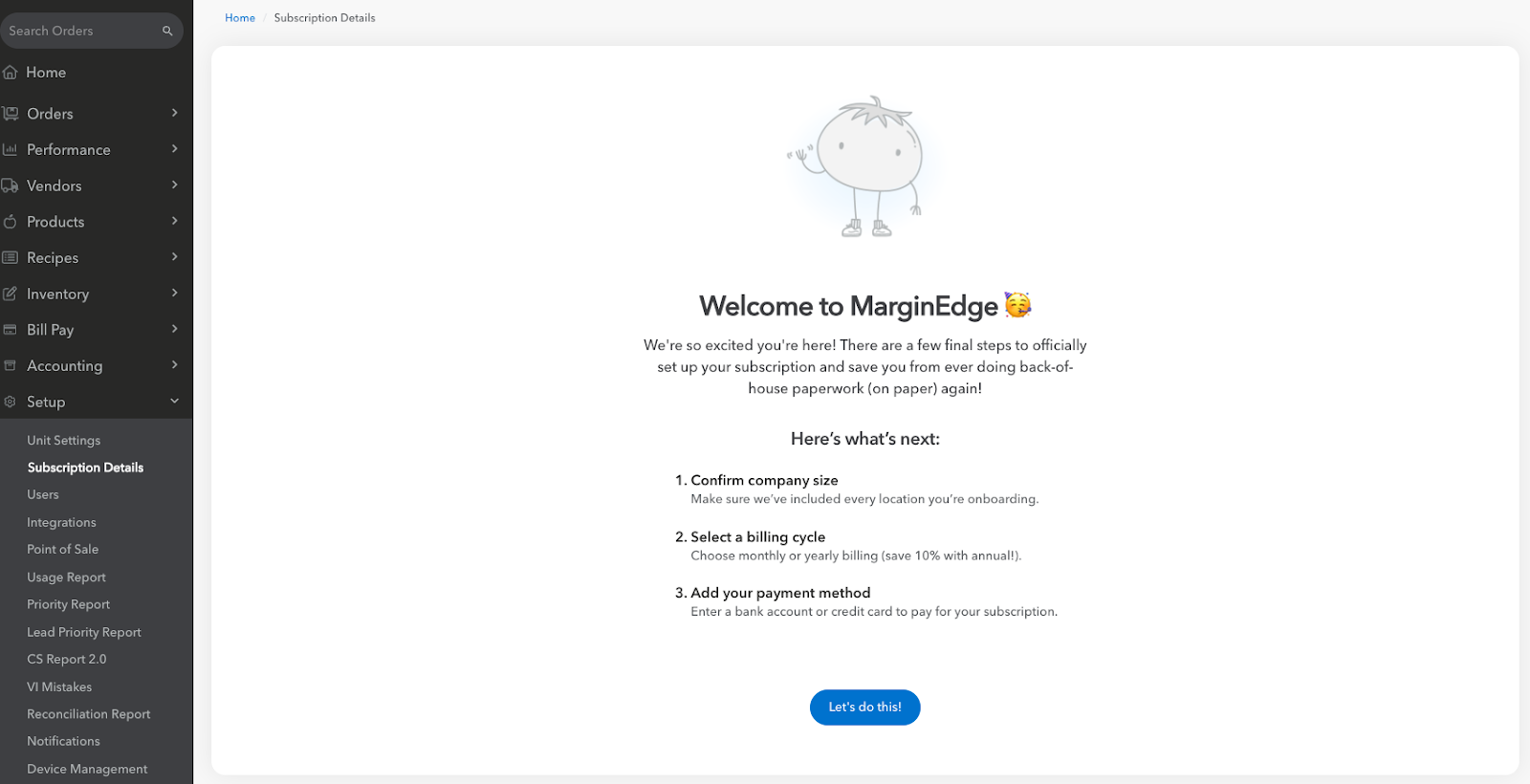
After logging into MarginEdge, navigate to Subscription Details under the Setup tab from the left hand menu. Click on ‘Let’s do This’ to get started.
Billing Setup Options
If you are part of a multi-unit group, you have the ability to choose your billing setup.
If you a single unit, skip this step and go straight to Billing Frequency!
- Individual Location Billing: Set up each location to have its own invoice and designate a payment account for use per location.
- Consolidated Billing: Pay for all your locations' subscriptions using a single payment method and receive one invoice for your entire company.
Billing Frequency
Prepay for your subscriptions for a year to earn 10% off your recurring subscription or pay monthly to spread it out. Your selection here applies to all your locations.
Payment Methods
US based clients can choose between their bank account or credit card to pay for their subscription. A 3% processing fee applies to credit card payments. At this time credit card is only available for Canadian clients. No processing fee is applied for Canadian based clients.
Final Step - Review!
Review each location to make sure things look right. Here you’ll see your first bill amount by location inclusive of your recurring subscription(s), one-time professional services, and discounts earned. You will be invoiced and charged the next business day upon submitting your payment information.
You can go back and edit your selections by clicking the ‘edit’ button under Plan Summary in the top right hand corner.
Viewing Subscription Details & Downloading Historical Invoices
Users with our ‘Billing Contact’ ability (more on this below) can review their subscription, upcoming bill date, and download historical invoices by going back to Subscription Details under Setup in the left hand menu.
To download previous invoices click, ‘click here’ under the ‘Billing History’ table. This will open our billing portal in a new tab.
When loaded, click ‘Invoices’ in the header to access historical invoices and download. If you are multi-location group, you can toggle between locations by clicking the down arrow next to your email in the top right and corner.
Billing Contacts
Only users with the "Billing Contact" permissions role can view your subscription details and update payment information.
From within MarginEdge, navigate to Setup > Users in the left hand navigation.
Select the user and either check or uncheck the box to grant or remove a user’s "Billing Contact" role.
More information about User Permissions can be accessed here: What are the Different User Permissions in MarginEdge?